
Author Instructions
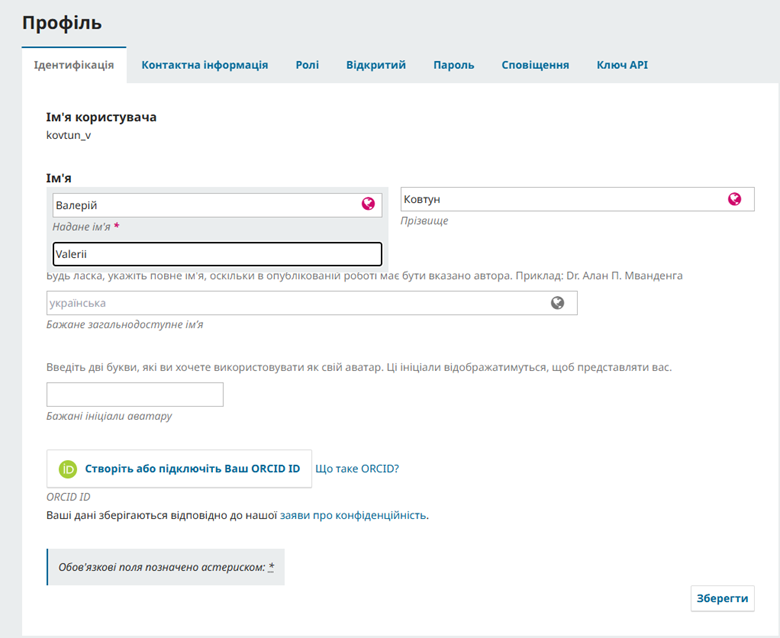
Completion of Basic User Information
- In the "First Name" field, enter your first name in Ukrainian.
- In the field below the primary name, enter the transliterated or English version of your first name.
- Verify that the spelling matches your official documents or international passport.
- In the "Last Name" field, enter your last name in Ukrainian and provide its transliterated or English version.
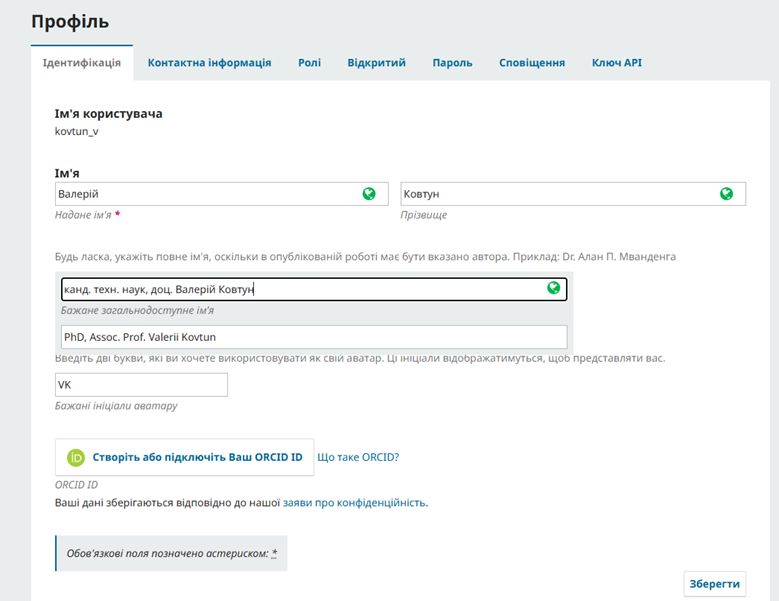
- In the “Preferred Public Name” field, enter the name that will be displayed in the system and used when publishing materials (use a transliterated or English version).
- In the “Preferred Avatar Initials” field, enter two letters that will be used for the user's automatic avatar (use a transliterated or English version).
- Be sure to create or link an ORCID iD to identify the author of scholarly publications.
- After completing all fields, click the “Save” button.
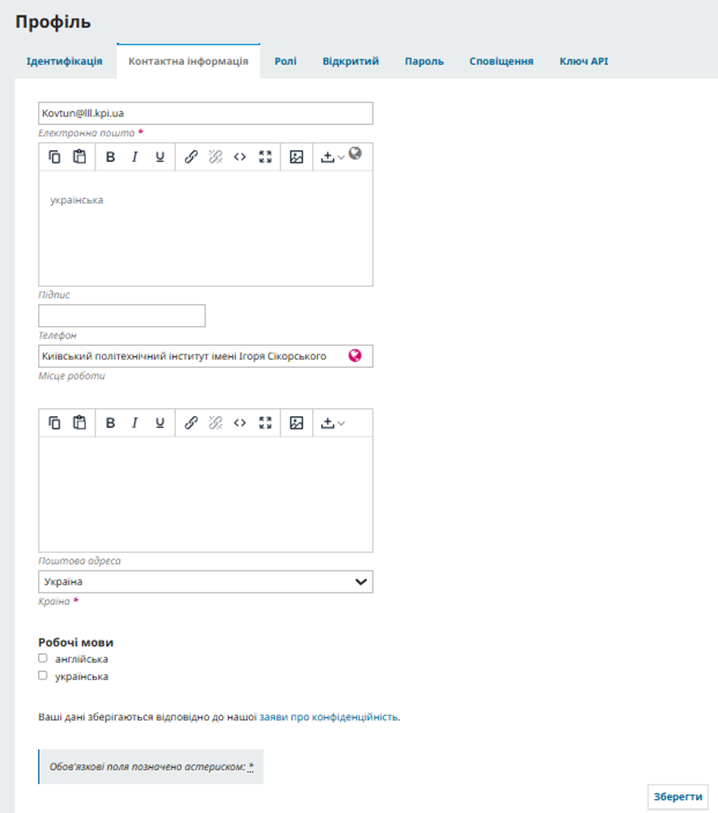
2. “Contact Information” Tab On the Contact Information tab, provide your contact details:
- In the Email field, enter your current email address.
- In the Signature field, enter a short signature or author information (if applicable). Use the English version.
- In the Phone field, enter your contact phone number.
- In the Affiliation field, enter the full official name of your institution. Use the English version.
- In the Mailing Address field, enter the postal address of your organization or workplace.
- From the Country list, select your country.
- In the Working Languages section, select one or more languages used for your research activities and correspondence.
- After entering all information, click the “Save” button.
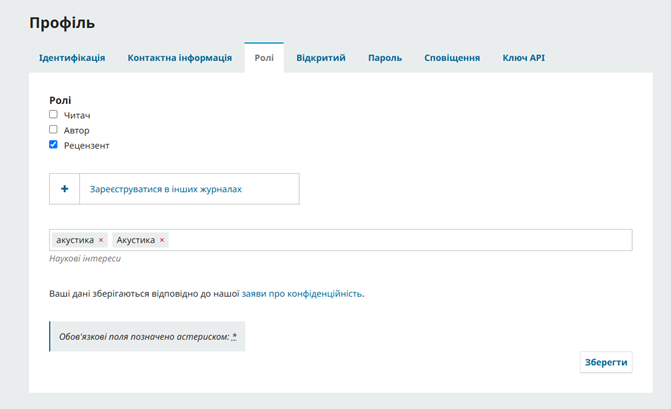
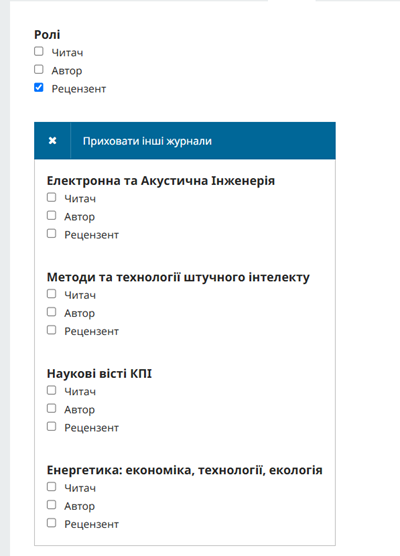
4. Selecting Roles in Other Journals If you plan to work with multiple journals on the platform, you need to configure your roles for each journal.
- In the “Roles” section, click the “Register with Other Journals” button.
- A list of available journals will open.
- For each journal, select the required role(s):
- Reader – to view journal content;
- Author – to submit scholarly articles;
- Reviewer – to perform peer reviews.
- A user may hold multiple roles simultaneously.
- After selecting the appropriate roles, return to your profile and click the “Save” button.
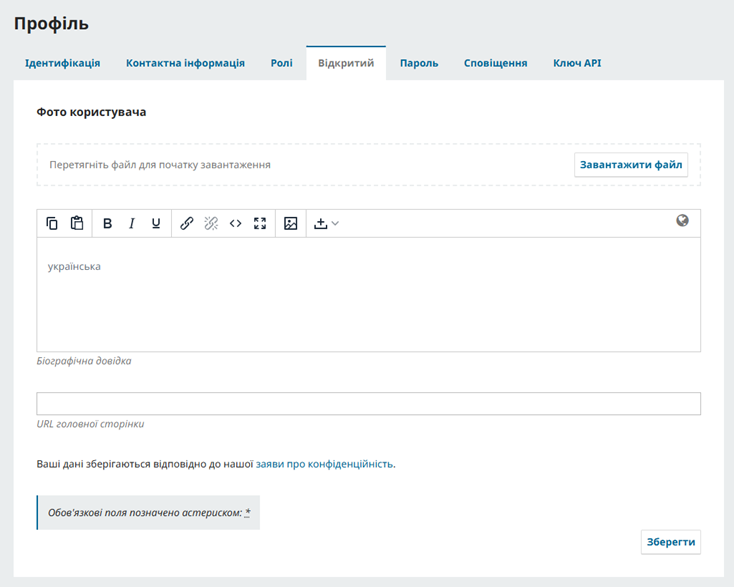
5. “Public” Tab (Publicly Available Profile Information)
We strongly recommend completing this information, as it will help increase your visibility and recognition as an author.
The “Public” tab contains information that may be visible to other users of the system.
-
Upload a profile photo:
- Click the “Upload File” button.
- Select an image from your computer.
- Confirm the upload.
-
In the “Bio Statement” field:
The system supports biographical information in multiple languages.
- In the editor under “Ukrainian”, enter your biographical information in Ukrainian.
- Switch to the “English” section and enter the English version of your biographical information.
- It is recommended that the Ukrainian and English versions contain the same information.
A biographical statement may include:
- academic degree;
- academic title;
- position/job title;
- institution or organization name;
- primary research interests;
- scientific achievements or research areas.
-
In the “Homepage URL” field, provide the address of your personal website. We recommend using your LinkedIn profile URL.
-
Click the “Save” button.